How to Annotate a Picture
A practical guide for picture feedback: pin comments to exact locations, add markup for clarity, and keep revisions and approvals organized without messy email threads.
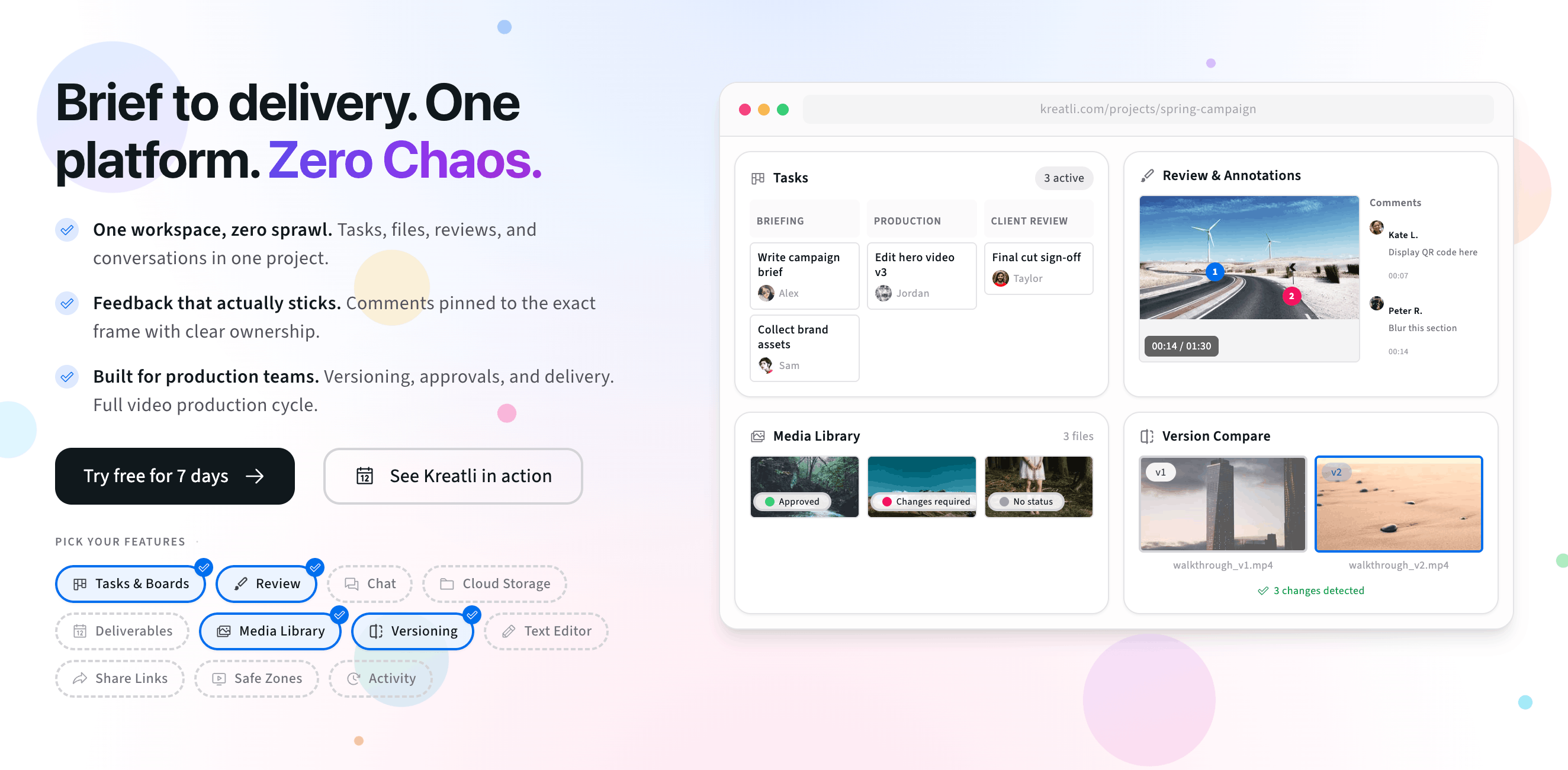
How to annotate a picture is about removing guesswork. The best feedback is anchored to the exact location you mean, and paired with clear intent—so revisions don’t bounce between screenshots and long message threads.
What “annotate a picture” means
In a picture review workflow, annotation means your feedback is attached to a specific spot on the image. That makes it easy for the editor to understand what you meant and for the team to track what’s resolved.
Pinned comment: the note is anchored to a location.
Markup: arrows/boxes/highlights show “where” instantly.
Resolution: open vs resolved keeps review moving.
When picture annotation is the fastest way to align
Design review: alignment, spacing, typography, and layout tweaks.
Brand checks: logo placement, color usage, and consistency.
Approval rounds: keep sign-off and feedback tied to the right version.
For the platform overview, see Annotate Image.
How to annotate a picture (step-by-step)
Open the picture in a review tool that supports pinned comments (and optional markup).
Click the exact area you want to reference.
Write the annotation with action + intent.
Add markup when helpful (arrow/box/highlight) so the area is obvious at a glance.
Share a review link so all feedback stays in one place.
Resolve comments as edits are made and confirm approval on the latest version.
Best practices for clear picture markup
One request per comment: split feedback into separate notes so it’s easy to resolve.
Be unambiguous: describe the object/area and the change.
Add a success check: “aligns to grid,” “reads at mobile size,” “matches brand colors.”
Prefer a quick arrow/box for anything spatial.
Try annotating a picture now
The interactive preview below mirrors a simple picture annotation flow. When you’re ready, start a 7-day trial or book a demo.
Upload an image to get started
Drag and drop an image here, or click the button below
Free tools, guides, and platform features
Below are free tools that pair with picture review, plus related guides and platform features to explore next.
Free tools for picture annotation
Try tools that complement pinned comments, markup, and approvals.
Image Annotator — Add location-pinned comments, highlights, drawings, and markup to images. Share with clients; recipients do not need a Kreatli account.
Image Reviewer — Review images online with location-pinned comments, annotations, and approvals. Share with clients; recipients do not need a Kreatli account.
PDF Annotator — Add location-pinned comments, highlights, drawings, and markup to PDFs. Share with clients; recipients do not need a Kreatli account.
Video Annotator — Add frame-accurate comments, drawings, and markup to video. Pin feedback to exact timestamps and share with clients; recipients do not need a Kreatli account.
More guides and examples
Read more about review, approvals, and version-aware image workflows.
What Is Proofing Software? A Modern Guide for Creative Teams
Proofing Software vs Production Management: Key Differences and the Best Choice for Creative Teams
More resources
Capabilities that support image review, approvals, and secure storage.
Annotate Image — Annotate and review images with comments and markup. Add feedback directly on images for precise, location-pinned review.
Draw on Image — Draw and markup directly on images for precise feedback. Freehand, shapes, and annotations on images.
Secure Asset Storage — Enterprise-grade storage for creative assets. Organize files, track versions, and protect your media with reliable infrastructure.
FAQ: Annotate a picture
What does “annotate a picture” mean?
It means adding feedback directly on the picture—usually pinned comments plus markup like arrows, boxes, and highlights—so collaborators understand exactly what area you’re referencing.
Is it better to annotate the picture or write a message?
If the feedback is visual or spatial, annotation is usually better. A message can be too vague (“move it left”), while a pin or box shows the exact area and reduces back-and-forth.
What’s the best way to share picture feedback with a client?
Share a single review link where the client can leave pinned comments. That keeps feedback centralized, prevents conflicting notes across email threads, and supports clear approvals.
Can multiple people annotate the same picture?
Yes. A good review workflow supports multiple reviewers on one version, with comment resolution so the editor can track what’s done vs what’s still open.
How do I avoid duplicate or conflicting annotations?
Ask reviewers to keep one request per comment, and use resolution status to confirm changes. If approvals matter, keep version history so decisions stay traceable.
Still have questions?
Reach us at support@kreatli.com and we will help you set up a picture annotation flow that fits your team.
Ready to get clear picture feedback?